- Identify the events you want to monitor
- Create and deploy your backend endpoint
- Test in the staging environment
- Register in production
Step 1 — Identify the events you want to monitor
An Event Catalog listing all available events, their payload schemas, and example data is available inside the LearnInk admin dashboard. To access it: Settings → Developers → Webhook → Event Catalog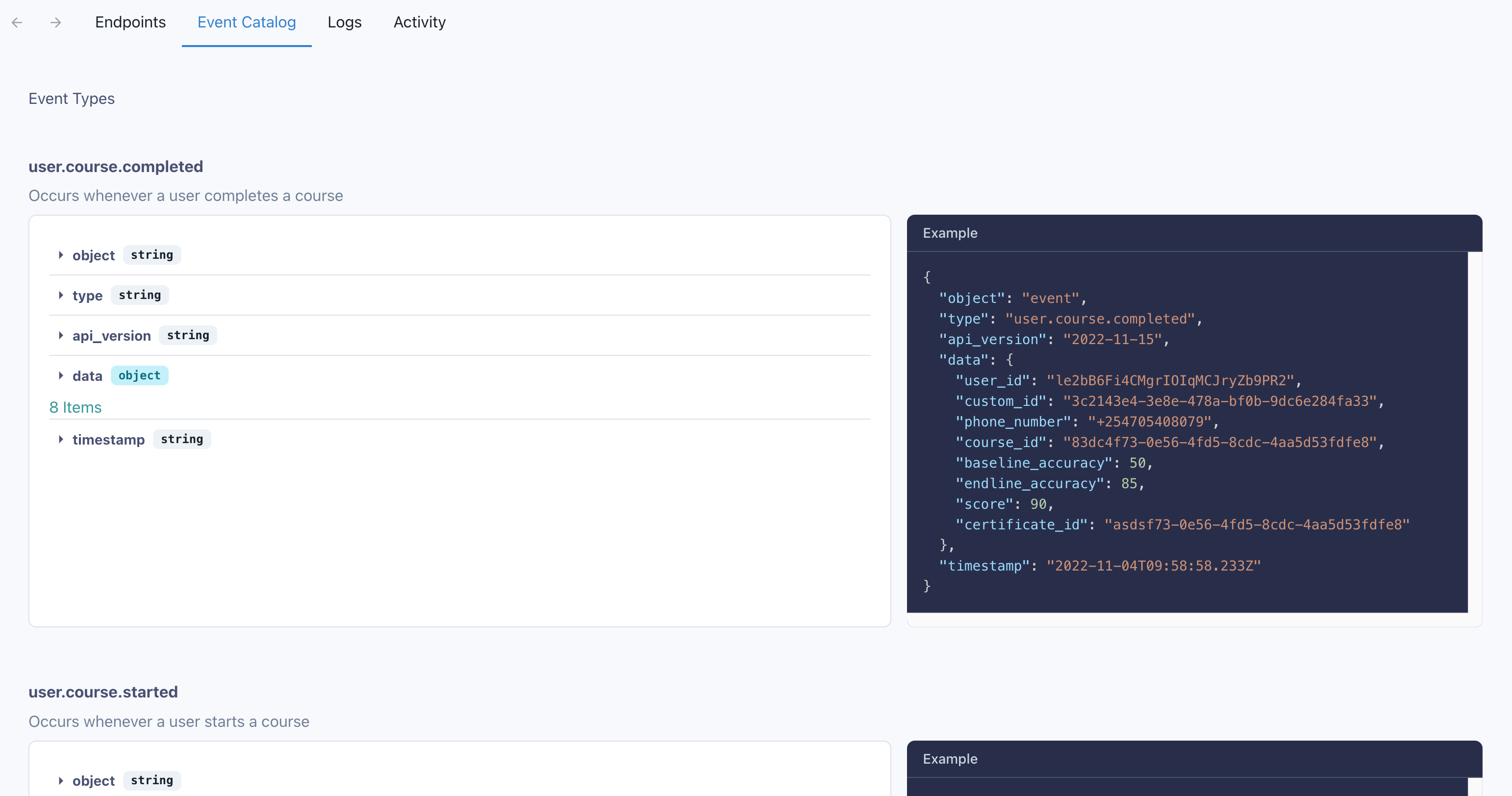
Step 2 — Create your endpoint
Handle the event payload
Your endpoint receives aPOST request with a JSON body. Check the type field and route to the appropriate handler. You can use api_version to handle any future breaking changes to the payload format — currently all events use version 2022-11-15 and no action is required on your part unless LearnInk notifies you of a version update.
Example payload for the user.course.started event:
Verify the request signature
All requests from LearnInk include Svix signature headers, which you should use to verify the request is genuine before processing it.
Example headers:
Return a 200 immediately
Retry schedule
If your endpoint does not return a200, LearnInk retries delivery on the following schedule:
After all attempts are exhausted the message is marked as
Failed. If an endpoint is disabled or removed, delivery attempts stop immediately.
Step 3 — Test in staging
You should have been invited to a LearnInk staging environment. Always test your endpoint here before connecting to production.If you don’t have staging access, email info@learn.ink to request it.
Add a test endpoint
Navigate to Settings → Developers → Webhook in your staging environment and click + Add Endpoint.

Subscribe to events
Select the events you want to receive. If you leave this blank, you’ll be subscribed to all events by default.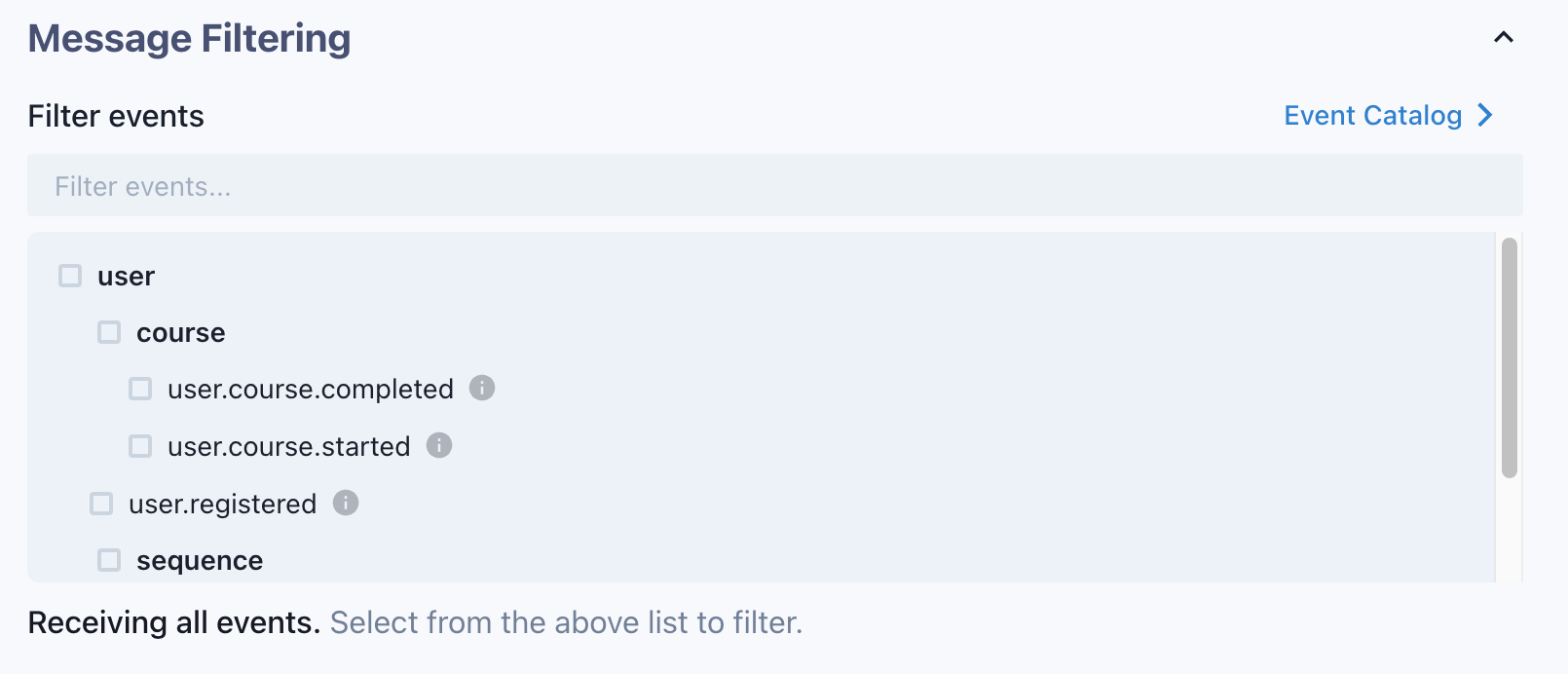
Send a test event
Go to the Testing tab, choose an event type, and click Send Example. The result will appear in the Attempted Messages log below.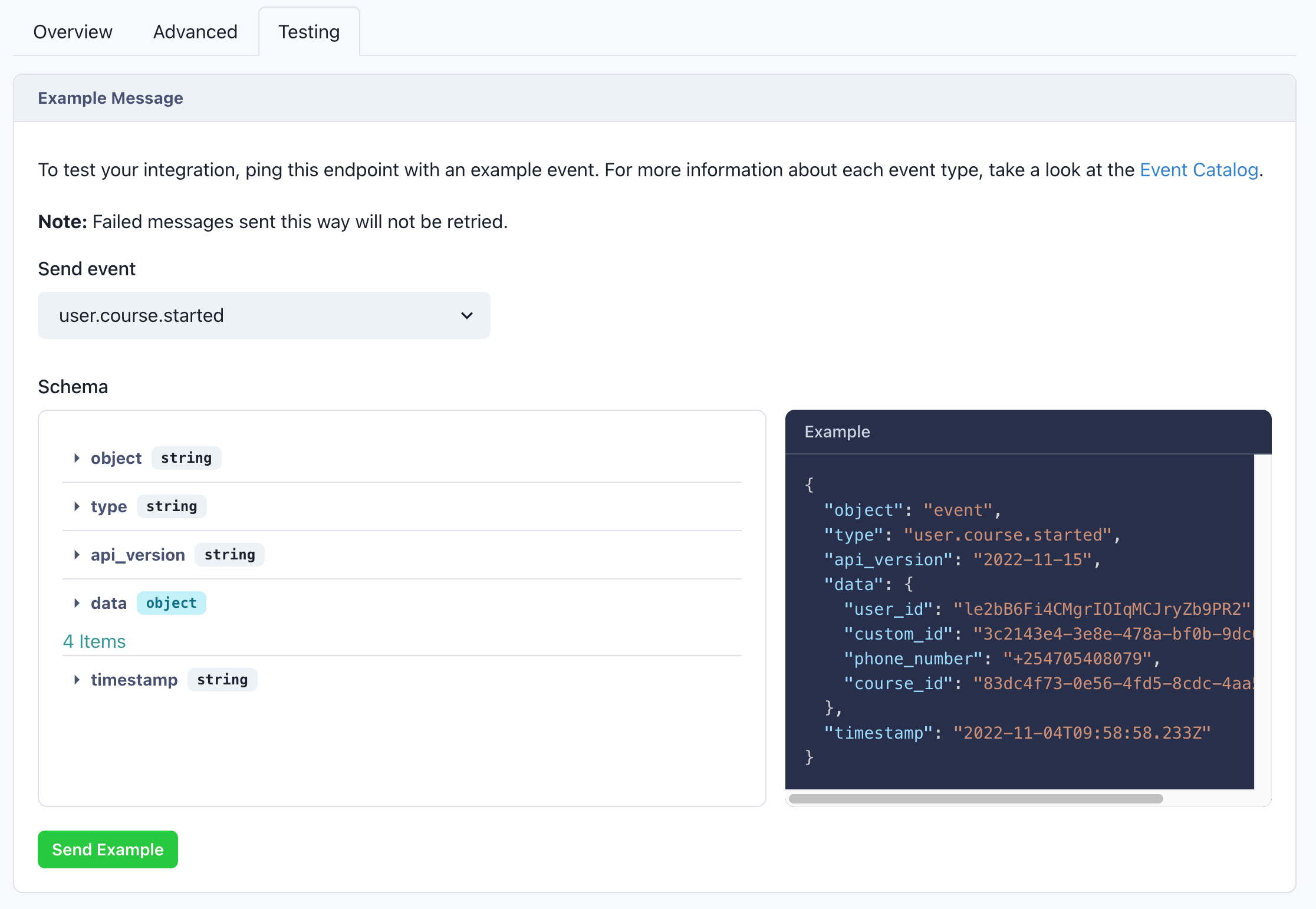

Step 4 — Register in production
Once you’re satisfied with your staging tests, follow the same process in your production LearnInk dashboard to register your production endpoint.Filtering message logs
From the endpoint page, filter the message log by event type and date to locate specific messages quickly.Replaying messages
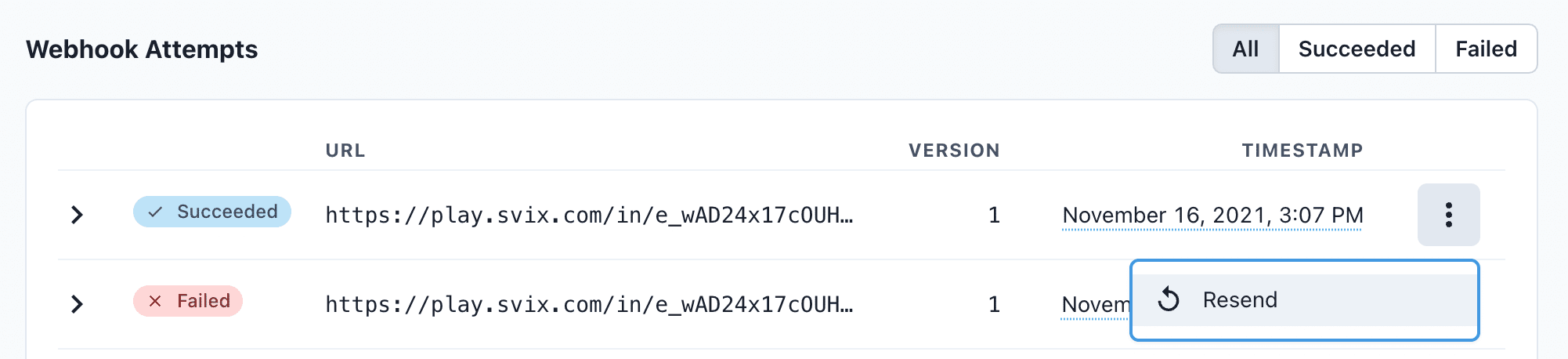
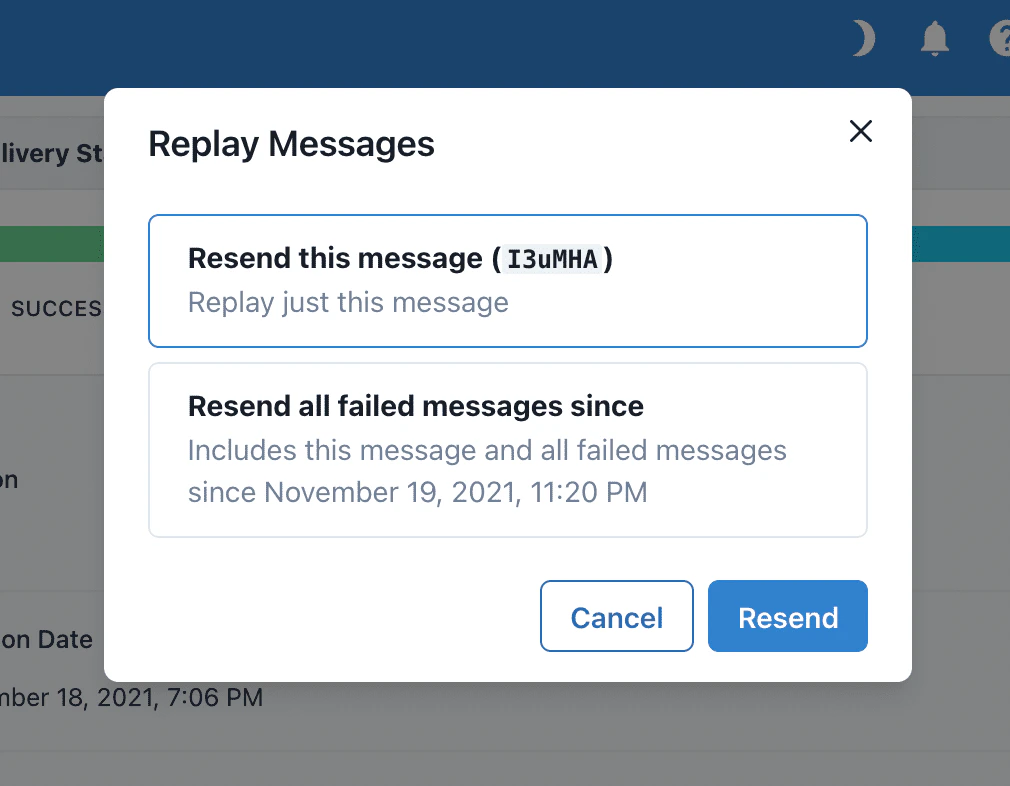
- Single message — Find the message, click the options menu → Resend
- Bulk recovery — On the endpoint detail page, click Options → Recover Failed Messages and select a time window
- Granular recovery — Click the options menu on any message → Replay… → Replay all failed messages since this time