
Before you start
Make sure you have the following from LearnInk before beginning your integration:- ✅ Your API key — used by your backend to call the Identify API. Generate and rotate API keys in the LearnInk admin portal (Settings → Developers → API Keys). If your organisation doesn’t have access to this feature, contact support@learn.ink.
- ✅ Your org ID — your organisation’s unique identifier, used in the WebView URL. This is set at account creation.
- ✅ Access to the staging environment — for testing your integration before going live. Request access from support@learn.ink if needed.
Why use a WebView integration?
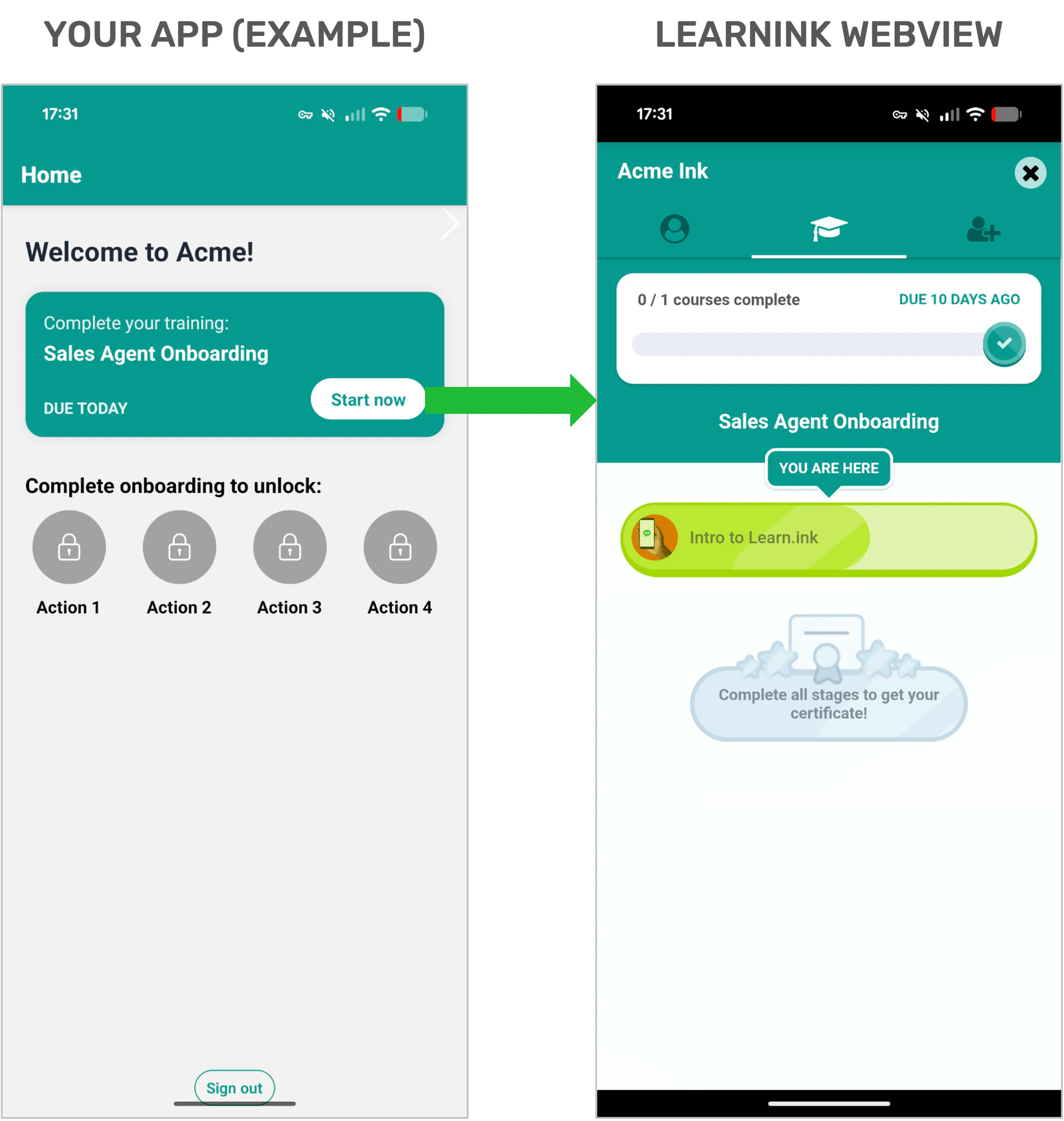
The alternative to a WebView integration is directing users to the standalone LearnInk app. For many organisations, that’s a friction point: users need to download a separate app, remember separate login credentials, and switch context to complete their training. Completion rates suffer. With the WebView integration:- Users never leave your app
- There’s no separate login — users are authenticated automatically and silently via the Identify API
- You control the entry point, the navigation, and the framing of the experience
- The close button inside the WebView sends a message back to your app, so your UI stays in control
How it works
The flow on each app open looks like this:- The user navigates to the training section of your app
- Your app requests a sign-in token from your backend
- Your backend calls the LearnInk Identify API with the user’s ID and your API key
- LearnInk returns a short-lived token (and creates the user if they don’t yet exist)
- Your app loads the LearnInk WebView with the token in the URL — the user is signed in automatically
Don’t forget: push notifications
Users in the LearnInk WebView cannot receive push notifications directly — the WebView has no access to your app’s notification infrastructure. LearnInk sends notification events (scheduled reminders, new training assignments, etc.) via webhook, and your app is responsible for forwarding these to users. If you don’t set up the webhook notification flow, users will silently miss reminders and training assignments.Push notifications setup guide
Learn how to receive LearnInk notification events via webhook and forward them to users as push notifications.
Is there an SDK instead?
Yes — for Android, and currently in beta. The LearnInk Mobile SDK does everything on this page for you: the WebView screen, token handling, session refresh, post messages and offline support. You supply your org ID and a function that fetches a token.Mobile SDK (beta)
Native Android, Flutter and React Native.
What you’ll need to build
There are two parts to the implementation:WebView setup guide
Step-by-step instructions for implementing your backend token endpoint and the mobile WebView screen (including close + session refresh).
React Native
JavaScript & TypeScript
Flutter
Dart
Kotlin
Native Android